Why web previews aren’t enough for mobile apps
Product Updates
February 2, 2026
.png)
The landscape of app-building tools has rapidly evolved. Today, most platforms offer fast, browser-based web previews that let builders design interfaces, wire logic, and iterate quickly without long build times. These previews are often the first—and sometimes only—way teams validate their apps during development.
While this approach dramatically improves iteration speed, it comes with an important limitation: web previews validate UI, not native mobile behavior.
Real mobile apps run inside operating systems with their own lifecycles, permission models, hardware constraints, and performance characteristics. A browser-based preview, no matter how smooth, cannot fully replicate those native nuances.
This article explores why web previews fall short for validating real mobile behavior, what kinds of native issues they can’t surface, and how Local Run in Dreamflow acts as the missing middle layer, bridging fast previews and full production builds.
Native nuances web previews can’t fully validate
Dreamflow preview is optimized for fast iteration, not for simulating a full mobile operating system. While it’s great for validating UI and basic interactions, it doesn’t run under the same OS-level rules that apply to real Android and iOS apps.
As a result, certain native behaviors, especially those enforced during Play Store or app store reviews, can’t be fully tested in a web preview. These issues typically only surface when the app runs in a true native environment.
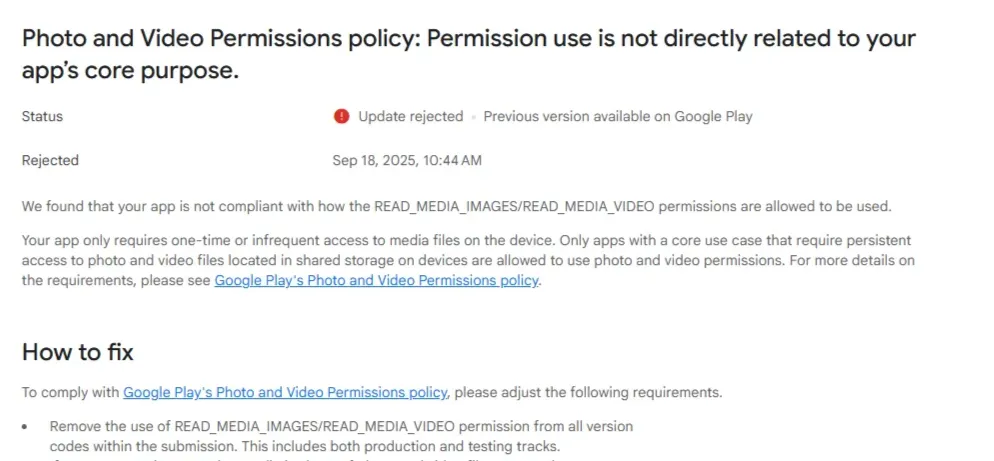
Below are a few practical examples of where this gap shows up in real-world apps.
Permission denial and OS permission flows
Mobile platforms require native OS permission dialogs (camera, location, photos, microphone, etc.). App Store review teams will test denial paths and expect apps to handle denied permissions gracefully, not crash or hang.
A web preview doesn’t trigger native permission dialogs and thus can’t validate:
- What happens when the user denies permission?
- Whether you show a fallback or error screen.
- Whether you guide users to settings screen, if needed.
Consequences
Apps that mishandle permissions can be rejected because they either crash or don’t function when permission is denied by users.
Example: Microphone permission denial
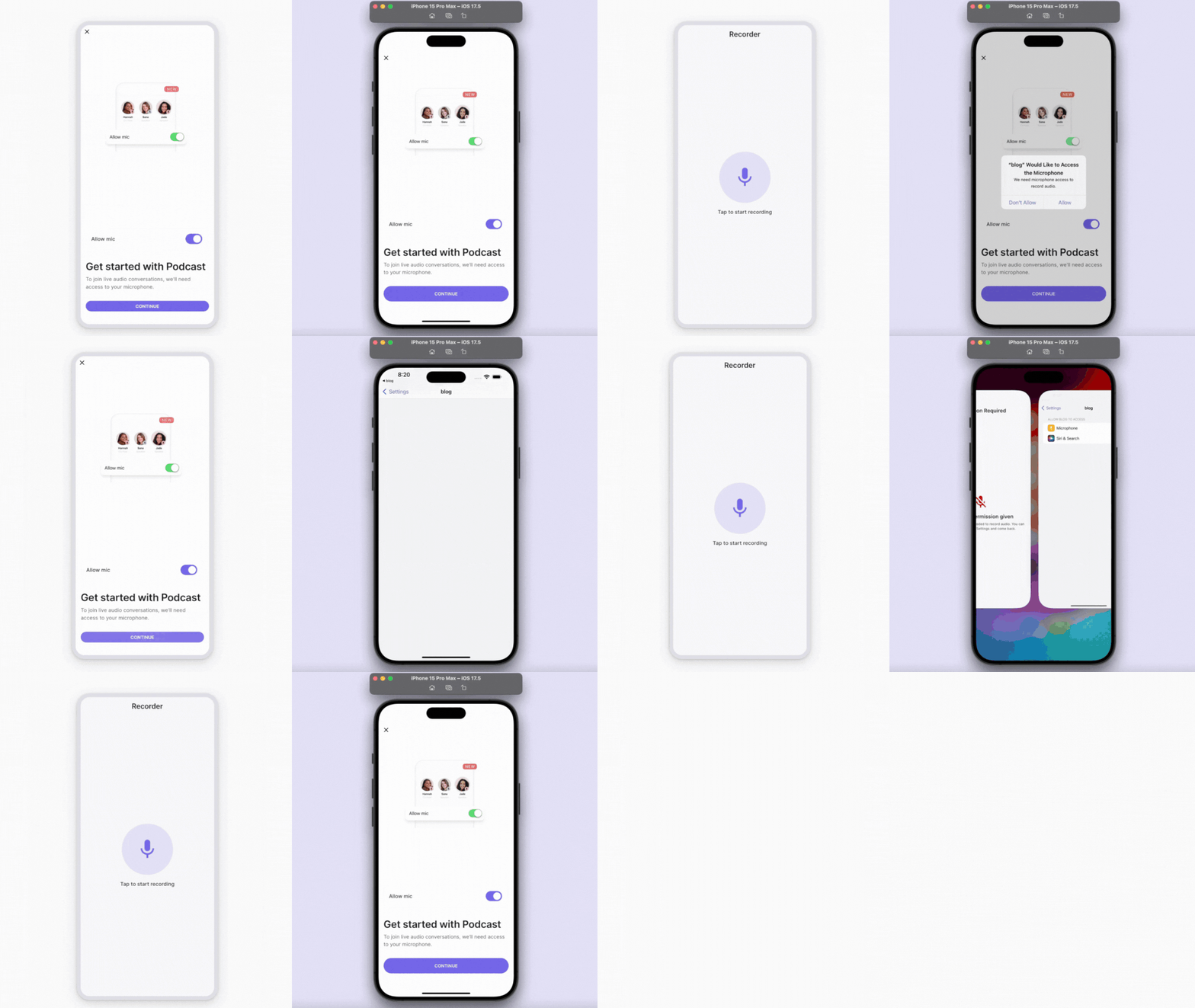
In the example below, we test microphone permissions in two environments: one running in DreamFlow’s web preview, and the other running in the iPhone 15 Pro Max simulator.
On a real device, when microphone access is declined, the app must provide a clear recovery path—often by directing users to Settings to re-enable permissions. In web preview, replicating this denial-and-recovery flow is difficult, because the native OS permission lifecycle isn’t fully simulated.
In Dreamflow’s web preview, permissions are often applied at the browser level (to the entire page), rather than scoped to the running app itself. This can make permission testing inconsistent compared to real iOS or Android behavior.
Inconsistent UI/UX flows
Mobile apps also need to account for system UI behaviors that web previews can’t fully simulate, especially the on-screen keyboard. On iOS and Android, the keyboard dynamically changes the available screen space, pushes content upward, and interacts with safe areas, scroll views, and bottom-aligned buttons.
In a web preview environment, these behaviors are often simplified or missing entirely, which makes it difficult to validate real-world form usability. Web previews can’t reliably show:
- Whether input fields remain visible when the keyboard opens
- Whether bottom buttons (like “Submit” or “Continue”) get covered
- Whether the screen scrolls correctly to keep the focused field in view
- Whether safe area insets are handled properly on devices with notches or home indicators
Consequences
Keyboard-related layout issues are one of the most common sources of broken mobile form experiences. If users can’t complete key flows, such as signing up, logging in, or submitting payment details, apps may fail usability expectations during review or early user testing.
Example: Keyboard covering a submission button
In the example below, we test the same form screen in DreamFlow’s web preview and in the iPhone 15 Pro Max simulator.
In the simulator, opening the keyboard reduces the visible viewport, and the rest of the form can become partially or fully hidden unless the layout is built to respond correctly. In web preview, this interaction is much harder to reproduce accurately, which can lead to UI issues only surfacing once the app is running natively.

Native crash flows
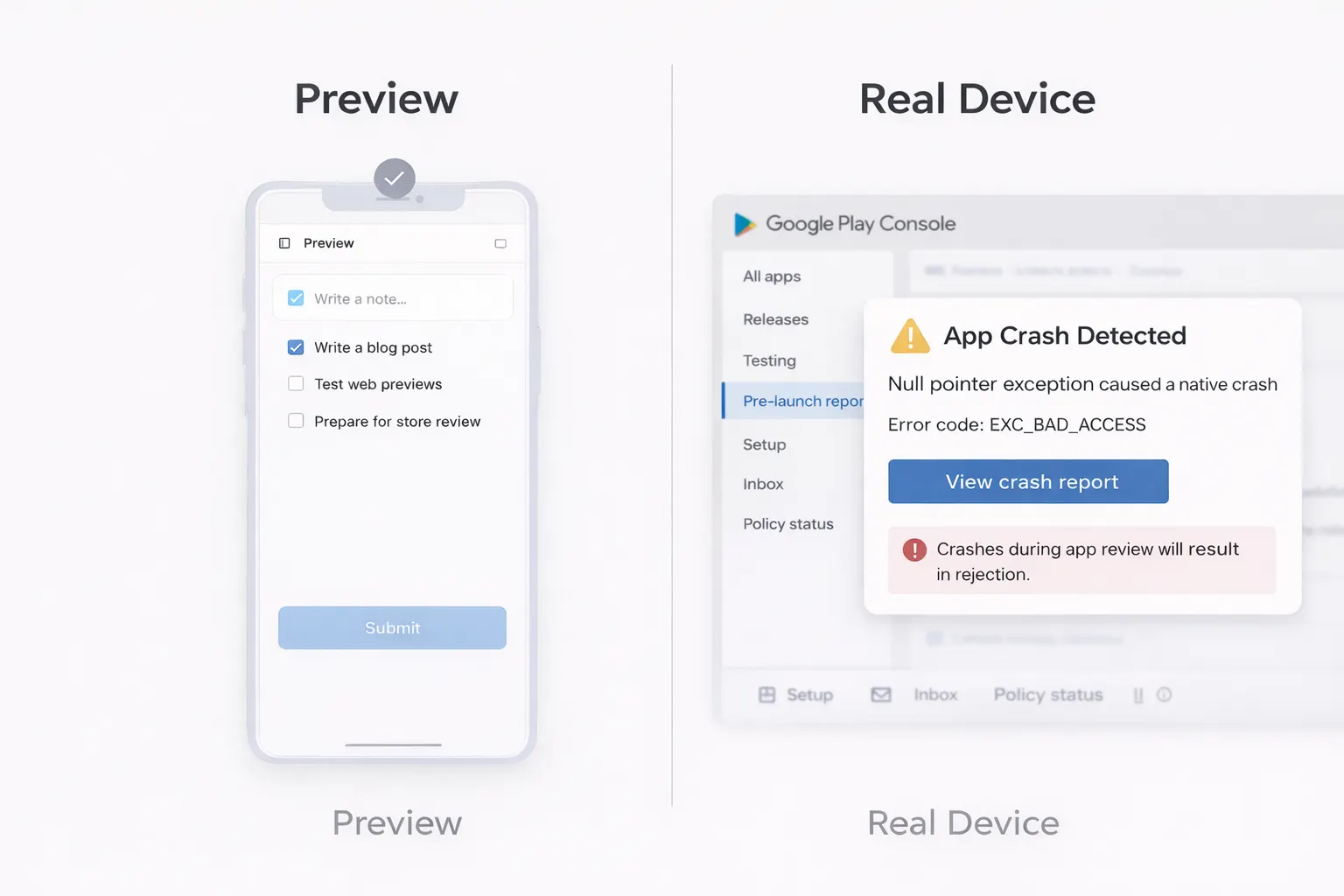
Web previews often can’t surface the kinds of low-level crashes that only appear once the app is running on real devices, or worse, once it reaches the Play Store or App Store review pipeline.
Native crashes can be triggered by platform-specific code paths, device-specific behaviors, or plugin integrations that never fully execute in a web preview environment. In many cases, the app may appear stable during preview testing, but crash immediately when running in production builds or during automated store testing.
A web preview can’t reliably validate:
- Native plugin execution errors (camera, payments, notifications, file access)
- Device-specific crashes that occur only on certain manufacturers or OS versions
- Release-mode crashes that don’t reproduce in lightweight preview environments
- Issues surfaced only through Play Console pre-launch reports or App Store review devices
Consequences
Crashes are one of the fastest ways to fail store review. Even if the issue only occurs on a subset of devices, platforms like Google Play can detect it through automated testing and flag the release before it reaches users.
Introducing Local Run
Web previews are essential for fast iteration but as the examples above show, they aren’t designed to validate the full set of native behaviors that real mobile apps depend on.
Many platform-specific behaviors, especially those tied to the operating system and native execution, only show up when your app runs on real iOS or Android devices. These are exactly the kinds of issues that appear late in the development cycle: during store review, automated pre-launch testing, or after release.
At the same time, jumping straight from preview to signed release builds can slow teams down. Release builds introduce longer build times, signing overhead, and a heavier iteration loop—especially when you’re still actively developing.
This is where Local Run comes in.
Local Run acts as the missing middle layer between web preview and full builds. It lets you run your Flutter app in a real native environment so you can validate OS-level behavior early, catch platform-specific issues sooner, and ship with confidence before your app ever reaches the store review stage.
To get started, check out the Local Run documentation to learn how to set it up and incorporate it into your development workflow.
.png)
.png)